

Why Getting on Google Maps Matters
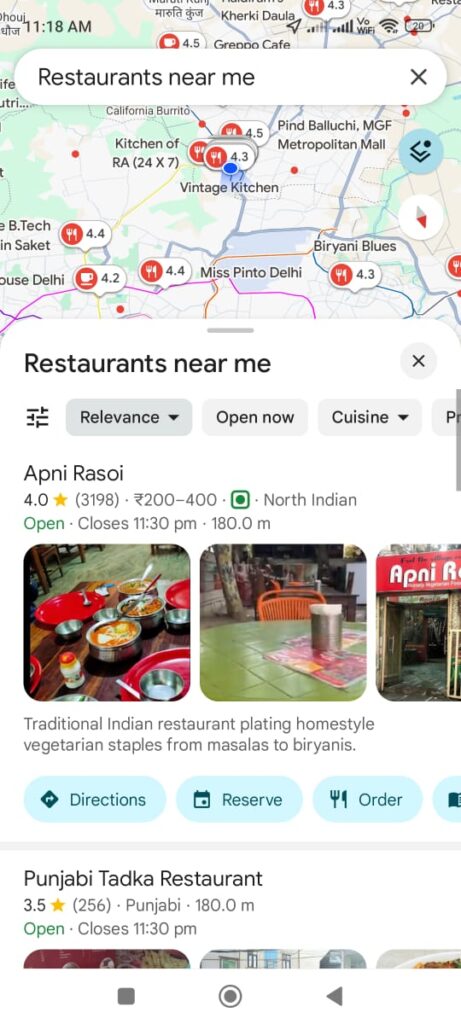
When people search for products or services nearby (“restaurrants near me,” “plumber in gurugram”), Google Maps shows local businesses first. If you’re not on the map, you’re invisible to these potential customers!
Listing your business is completely free and helps you:
- Appear in local search results.
- Share your hours, address, and phone number easily.
- Collect and display customer reviews (which helps build trust!).
Step 1: Create Your Google Business Profile
This is the control center for your map listing.
- Go to Google: Search for “Google Business Profile” or visit the official website.
- Sign In: Use your main Google Account (Gmail) to manage your business.
- Type Your Business Name: Start typing. If it appears, claim it. If not, click “Add your business to Google.”
Step 2: Input Your Location Details
Google needs to know what kind of business you run and where it is.
A. Business Type
Tell Google if you have a physical storefront that customers visit (like a shop or restaurant) or if you are a Service-Area Business (like a plumber or electrician who travels to customers).
B. Category
Pick the best category that describes your main service (e.g., “Coffee Shop,” “Hair Salon,” “Web Designer”). Be specific!
C. Contact Info
Enter your official business address, phone number, and website. Make sure this information is exactly the same everywhere (on your website, social media, etc.).
(Infographic Idea: A simple 3-step graphic showing: Name & Category -> Address/Service Area -> Contact Details.)
Step 3: Verify Your Business Ownership
Verification is how Google confirms you are the real owner of the business. This is a crucial step!
Google will usually offer a few options:
- By Mail: Google sends a postcard with a verification code to your physical business address. This can take 5–12 days. Once you get the card, log back in and enter the code.
- By Phone or Email: If you qualify, you might get an instant code via a text message or email.
- Video Recording: For some businesses, you can record a short video showing your location, equipment, and proof of management (like a key or employee badge).
Pro Tip: Your listing will not appear publicly on Maps until verification is complete.
Step 4: Finish and Optimize Your Profile
Once verified, it’s time to make your listing look great!
1. Business Hours
Add your standard hours (e.g., Mon-Fri, 9am-5pm). Don’t forget to update them for holidays!
2. Photos and Videos
Upload high-quality photos. Include:
- Your storefront/exterior.
- The interior/working space.
- Photos of your products or team.
Listings with photos get more clicks!
3. Business Description
Write a short, engaging description (up to 750 characters) that tells customers what you do, what makes you unique, and why they should choose you.
Frequently Asked Questions (FAQ)
| Question | Answer |
|---|---|
| How much does it cost? | It is completely free to create and manage a Google Business Profile. |
| How long does verification take? | It varies. Phone/Email is instant. Postcard verification takes 5-12 days. |
| Can I list an online-only business? | Yes, but you can’t show a physical address on the map. You must select the “Online Retailer” category instead of a local storefront category. |
| What if I move my business? | Log into your Google Business Profile dashboard and update the address immediately. You will likely need to re-verify the new location. |
You’re Done!
Congratulations! Your business is now ready to be found by millions of people using Google Maps and Search. Remember to check your profile often to reply to reviews and keep your hours up-to-date!